Communicating in Figma
"Communication is key", says the relationship therapist. And you realize they might have had a point when your designs are misunderstood by the entire team.
Fortunately, there are ways to communicate in Figma before misunderstandings arise. Whether it’s adding important notes around your design or starting full conversations along the way, Figma has some great features for this.
Cursor chat
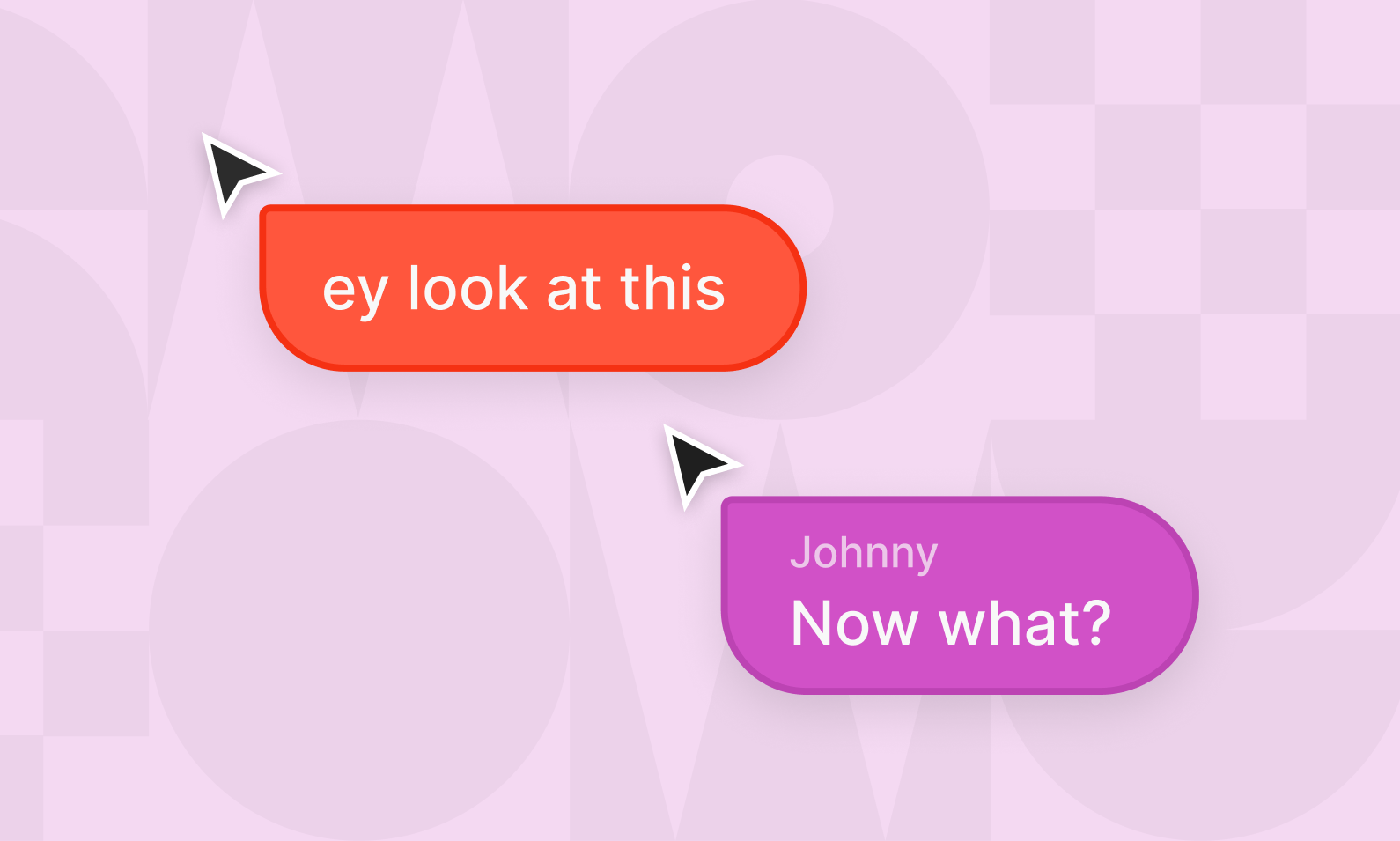
If you see someone’s cursor floating around and peeking over your digital shoulder, you can chat with that person. Right-click and select Cursor chat to get started.
And since life is better with keyboard shortcuts, I recommend learning them right away. Press the slash key “/” to bring up cursor chat, or find the one that matches your specific keyboard.
If you have a non-English keyboard, I recommend setting Figma up to match it: Press to the question mark icon in the bottom right → Change keyboard layout → set it to Norwegian (or whatever language your keyboard uses). That way, you can fully use your keyboard and the shortcuts to go along with it.
With the Norwegian, Spanish, Italian, German and Danish keyboard layout, the cursor chat is opened with comma ",", Swedish and Finnish uses Å, and French uses colon ":".
Audio conversations
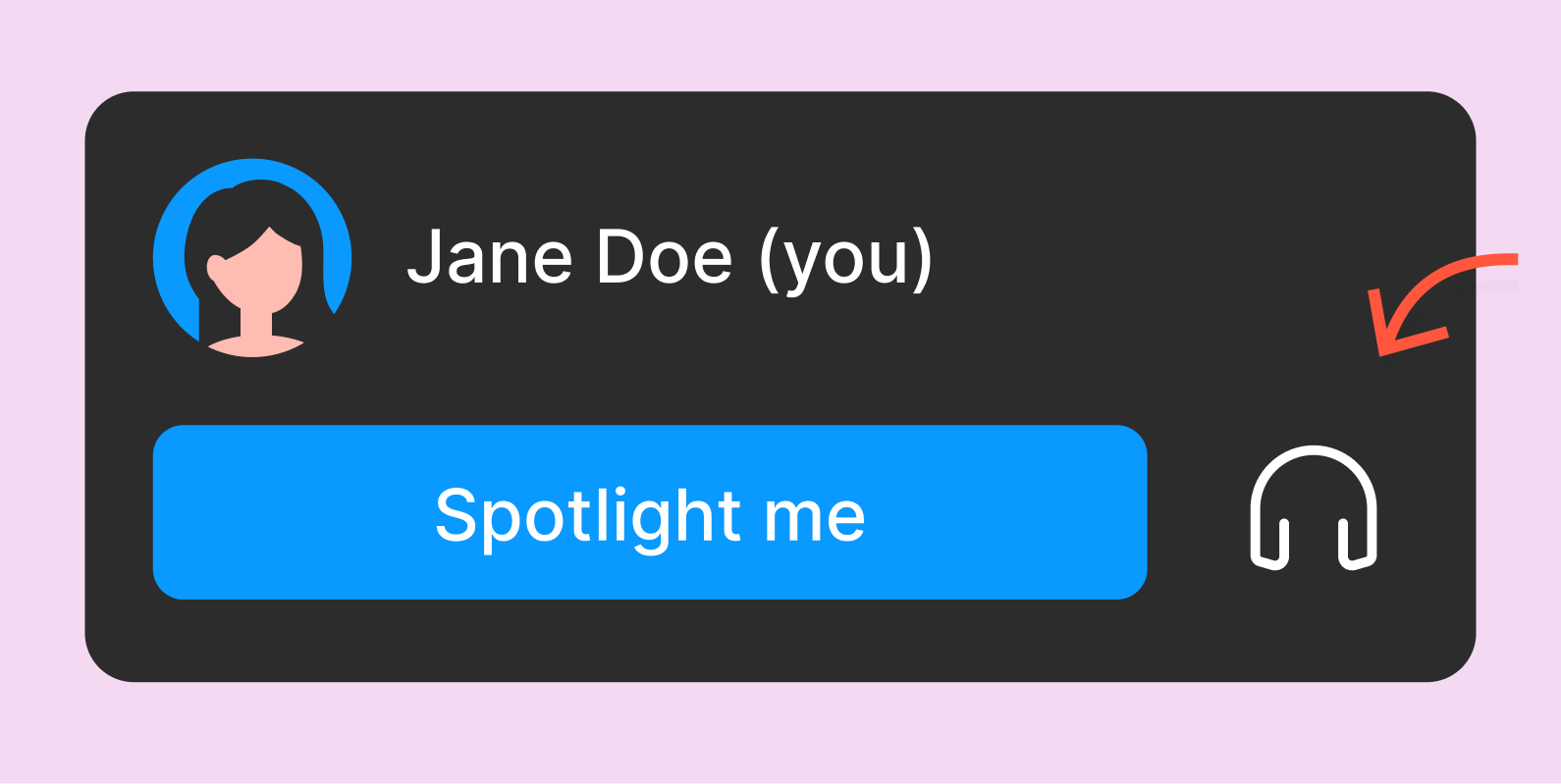
Did you think you’d escape meetings in Figma? Not quite. Click the headphone icon in the top right to start an audio conversation that others can join.
There’s also a built-in transcription feature that captures what’s being said. It’s still marked as experimental and in beta years after it was introduced, but it seems to work well (as long as the conversation is in English).
Comments
I guess most Figma users know this one. Press C (or click the speech bubble in the toolbar) to leave comments in the file. You’ll also see a list of previous comments in the panel on the right.
These comments can be replied to, making them a handy way to discuss the design. They’re also fully asynchronous, unlike the audio conversations, so people can respond whenever they want.
Personally, I find comments can get a bit in the way if they’re not checked regularly. So remember, you can toggle them on or off by pressing Shift + C (or by right-clicking and selecting Show/Hide comments).