
Color tricks in Figma

A Norwegian version of this post was originally written for UX Norge (the Norwegian UX community), as part of my Figma Tips column.
As a Figma user, you have nearly 17 million colors at your fingertips. Here are a few smart ways to make the most of them.
The Eyedropper

Color picker, eyedropper, or pipette: this beloved tool goes by many names. But it’s hardly a child anymore. It’s been around since the first beta version of Photoshop in 1988, and is guaranteed to be familiar to any professional designer today.
In Figma, you can quickly access it with the I key or Ctrl + C. I'd recommend the latter, as it is closer to your left hand’s resting position, making it the faster option.
A handy tip here is to hold it down after picking a color and drag around the file to see a live preview of the color on your selected object.
Color names inside the input

Did you know that the color code input also supports color names? Type in yellow, blue, green, and so on (where you’d normally enter HEX values) and Figma will magically generate a matching color.
It’s rarely the exact color you’ll actually want, but it’s handy for quickly dropping in a green tone when sketching something out, and at the same time flexing your Figma muscles to the floating heads around you.
Shift + X: Flip fill and stroke
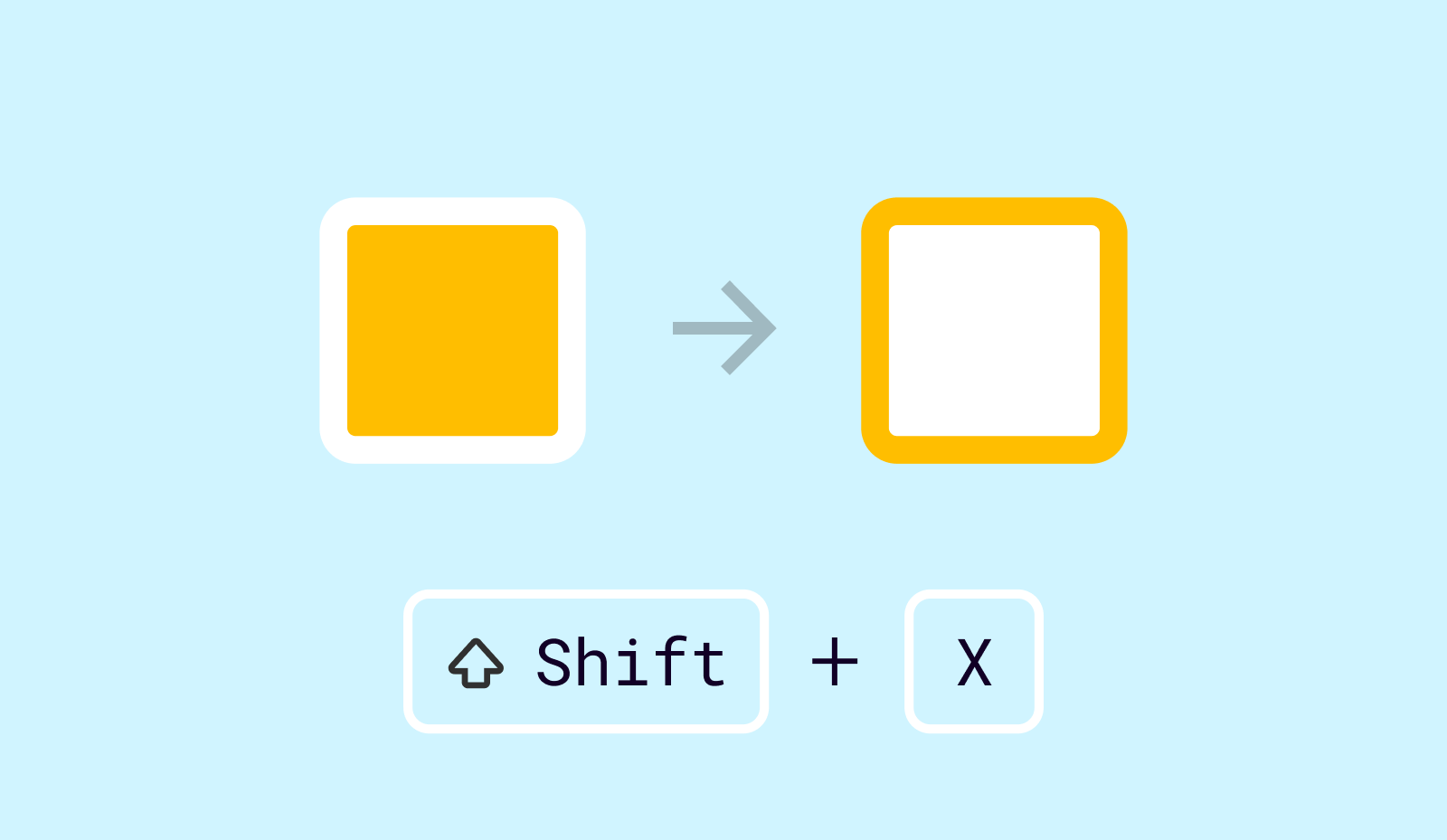
Perhaps my favorite. Use Shift + X to flip the color from fill to stroke—or the other way around.
This also works if you’re using a style (like a gradient or an image instead of a solid color).
Color Styles can be more than colors
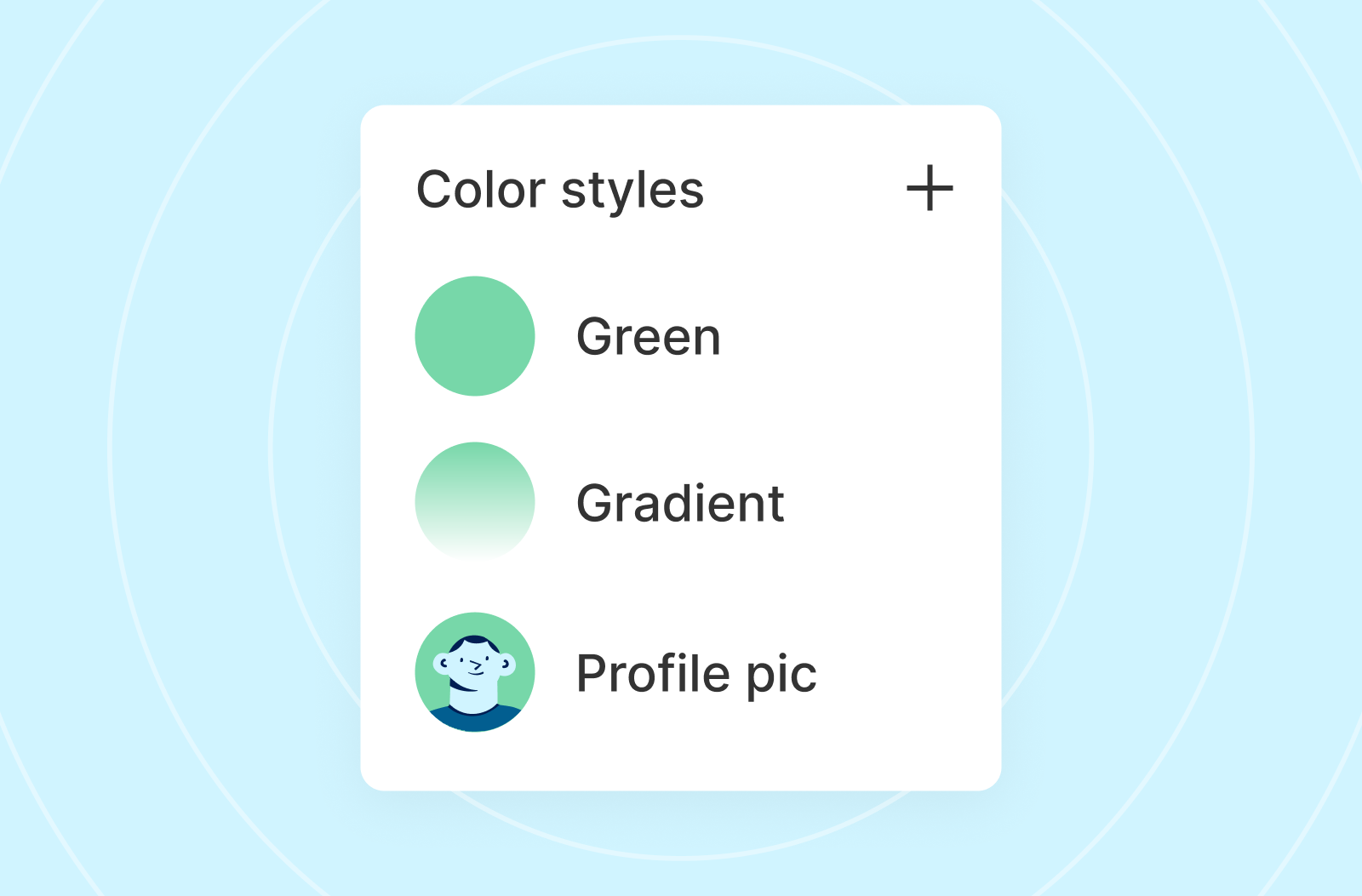
Speaking of styles—color styles can contain more than just a single color:
- A gradient
- Multiple colors layered on top of each other
- An image (including its properties, so you can repeat it as a pattern)
- Or a combination of all of the above
Use Arrow Keys to Adjust Colors
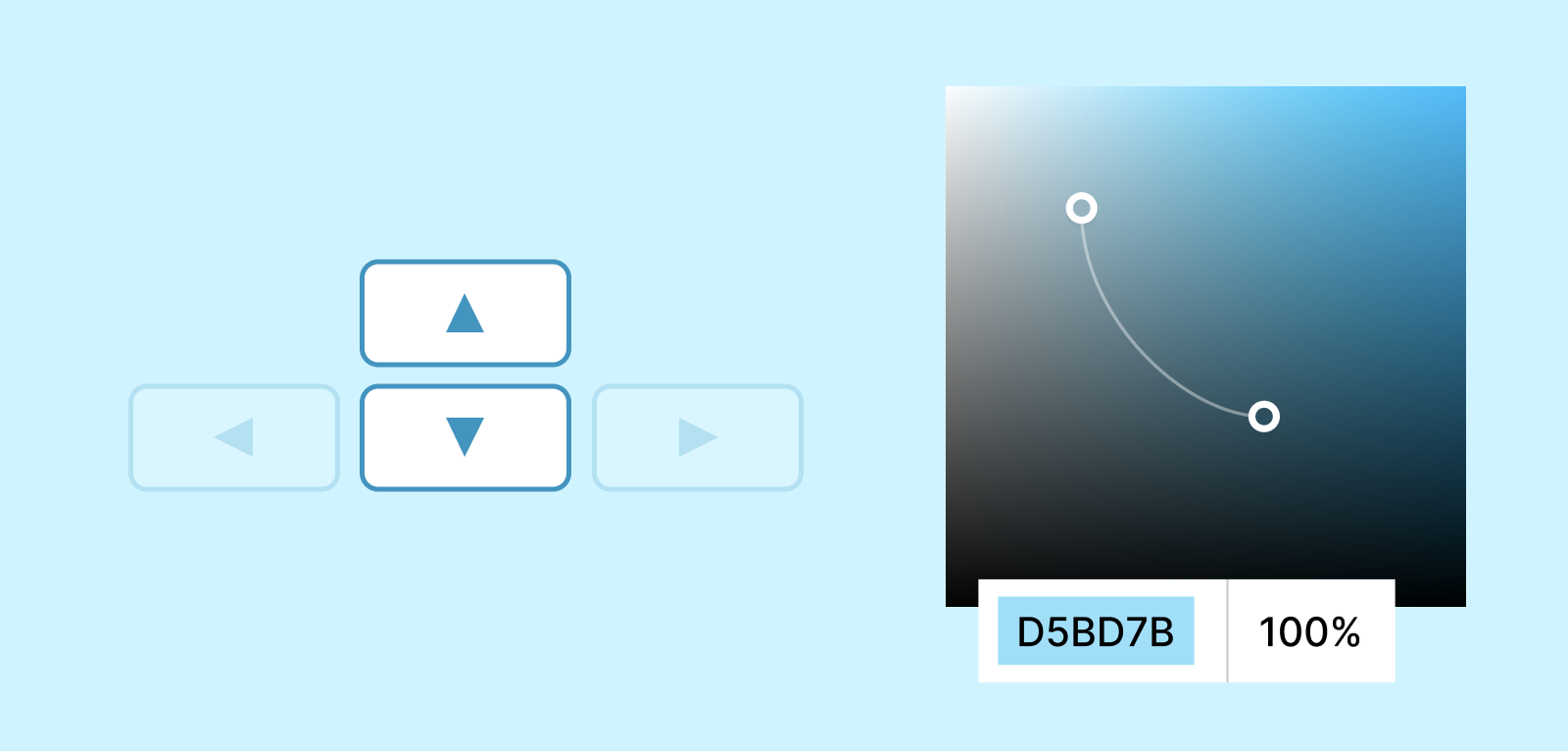
Select a color, like a mid-tone blue, and highlight all six digits. Now you can use the arrow keys to move up and down the color spectrum. Hold Shift to make larger jumps.
A great way to get predictable lighter or darker variations, while also compensating for saturation.