
Frames in Figma: 3 tips
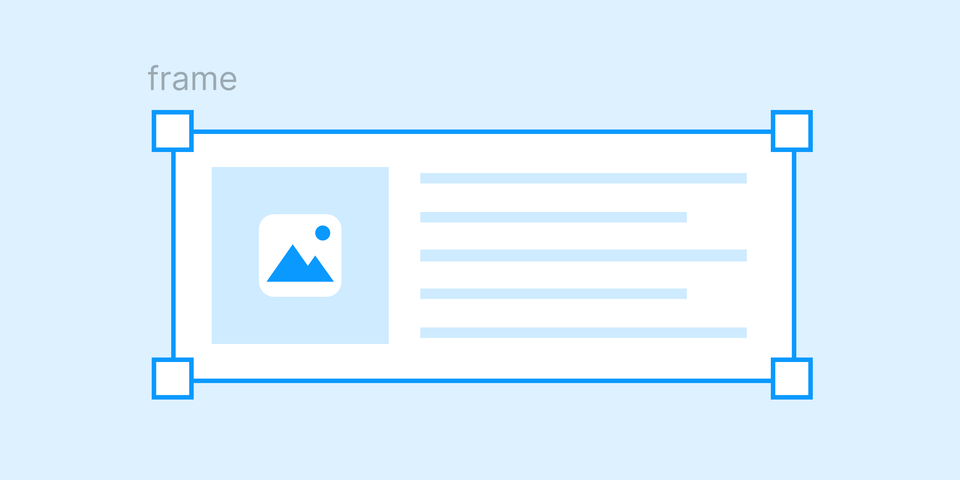
Frames are Figma’s version of an artboard/canvas within the (almost) infinite workspace you operate in. By placing things inside frames, you can organize the canvas, group content, move it around, mask it, use frames in prototypes and set the frame up for export.
Tip 1: Clip content (and its quirks)

Let’s start with a basic one. A frame acts as a mask, meaning it clips (hides) objects that extend beyond its boundaries. If you don’t want it to hide things outside, you can turn off Clip content (in the right panel when the frame is selected). Pretty basic perhaps, but annoying to learn too late.
Be aware that if you turn off clipping, exporting the frame will include elements that extend outside. The dimensions of the exported file will also increase. So if you had a frame in 200x200 and something inside the frame peek-a-booed outside of it, it could come out as 210x200 when exported.
On the other hand, if you export a frame to SVG with clipping turned on, you should make sure nothing extends outside. If it does, the SVG code will include a clip path with an ugly ID that you probably don’t want in your markup.
PS! Here's a weird one regarding clipping: If you place a frame inside a regular mask (not a frame), you might notice the mask doesn’t clip the frame. In that case, you actually need to turn off Clip content on the frame inside the mask for it to work. Still with me? Why it works like this, I’m not sure, but it solves the problem.
Tip 2: Use spacebar to avoid things jumping out of the frame while moving
This is a real sneaky trick. Hold down the spacebar while moving objects, and you’ll prevent them from suddenly jumping out of the frame when you hit the edge. This also applies to stuff outside of the frame, preventing it from jumping in.
Just remember to press space after you’ve started moving things—otherwise you’ll just end up in pan mode.
Tip 3: Hide the title by grouping the frame
The little title above the frame can be real handy, until it isn't. Get rid of it by putting the frame in a group: ⌘ + G on Mac, or Ctrl + G on Windows.
I often sketch apps and mobile websites using a rounded frame to mimic the phone it will appear on. When presenting these sketches, it's great to be able to get rid of the distracting title.