
Find your way around the Figma file

“With great power comes great responsibility.”
If your colleague starts quoting Uncle Ben from Spider-Man, chances are your Figma file has gotten out of control. While the infinite canvas gives you plenty of power, it’s not always easy to stay responsible and keep things tidy.
That’s when a few supernatural abilities come in handy to find your way, even when pages multiply, layers overflow, and nothing is named.
Search inside the file
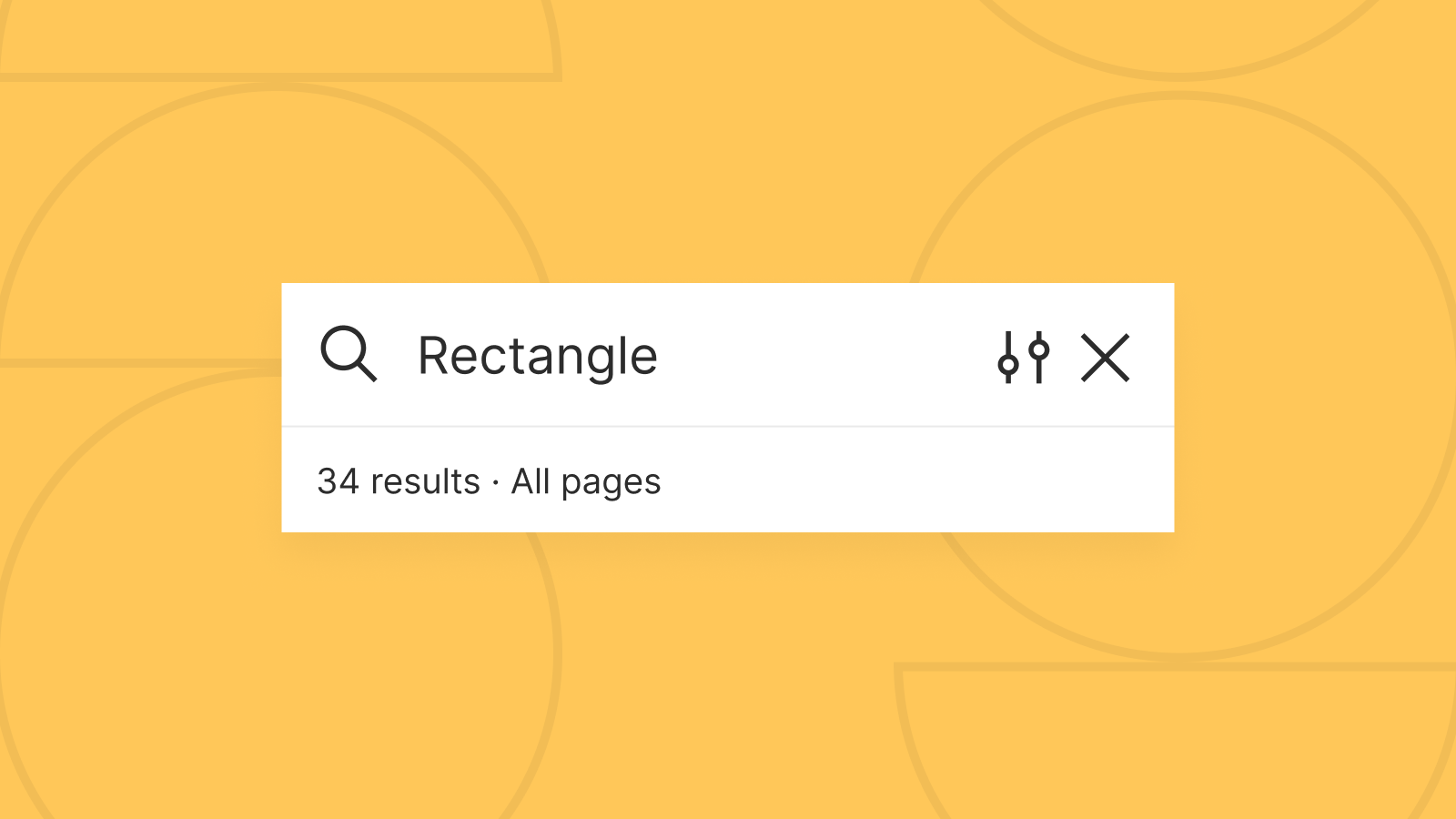
Figma’s search is seriously good. Use ⌘ + F to search, and you’ll find matches based on layer names or text content.
For example, “rectangle” will find rectangles you haven’t renamed (since they’re called Rectangle 1, 2, 3, etc.), while “Save” will find buttons containing that text.
If you get multiple results, you can quickly jump through them with the arrow keys. Click the settings icon next to the search field to filter results—for example, only show components.
Select all with the same properties
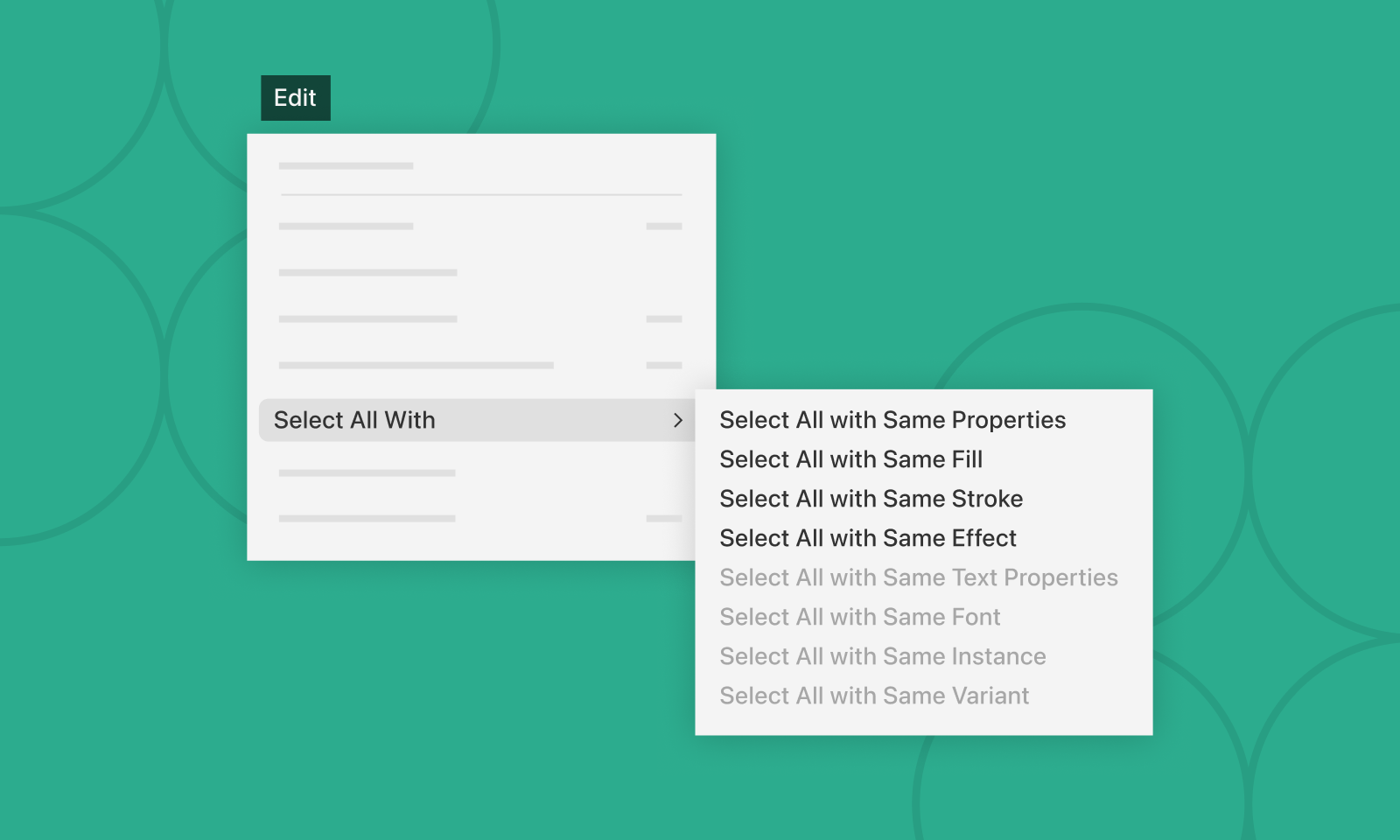
Let’s say you skipped the whole component thing and just made a bunch of identical objects scattered around. You can select everything that shares the same properties—like all delete buttons with a red outline, or track down (and remove) those questionable gradients someone in finance thought looked nice.
Select the object you want to match, then go to Edit → Select All With and choose the property you want to match. This only works within the current page.
Selection colors
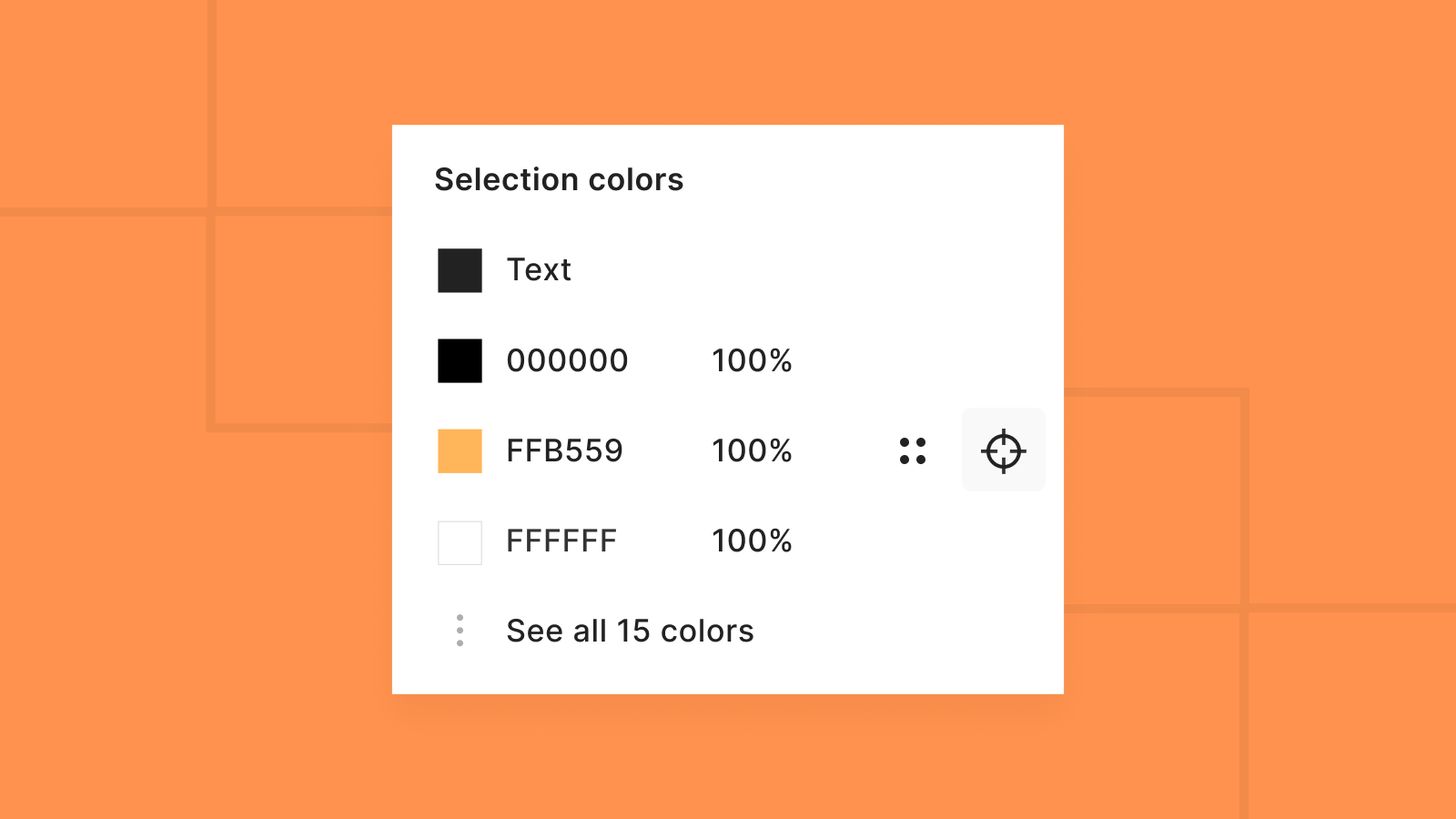
Drag across some objects or select everything on a page (⌘ + A), and check the Selection colors section in the right panel. You’ll see all the colors used in your selection.
Not only is this useful for spotting how many colors are in play—you can also change a color used in multiple places in one go. It’s also great for consolidating slightly different shades into a single consistent color.
Want to select all objects with a specific color? Hover over the color and click the target icon.
Find instances
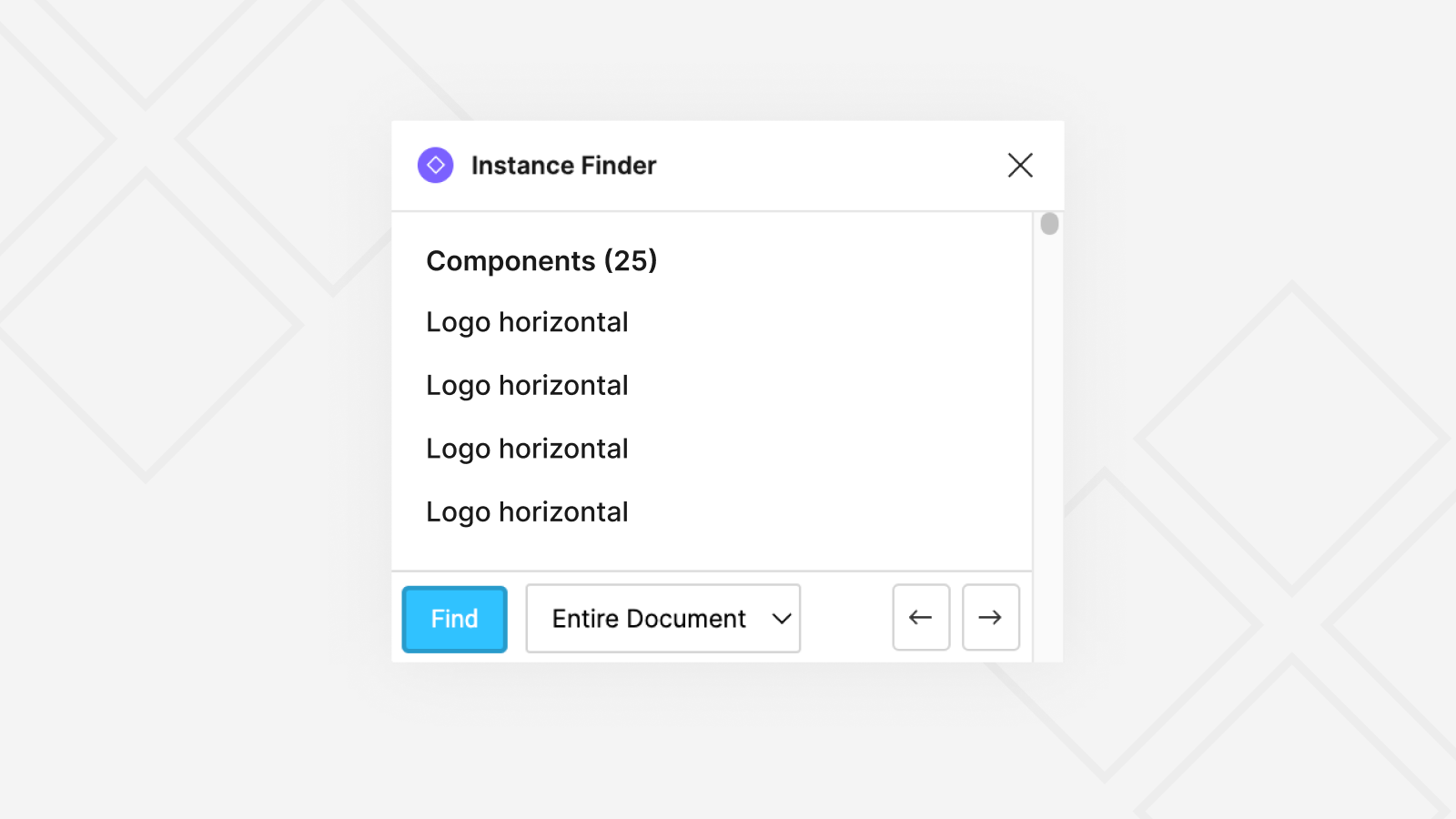
Did you ever wish Figma had a way to find where a component is used? Someone else did too, so there’s a plugin for it.
Download Instance Finder, select a component or instance, and you’ll see all the places it’s used. You can search within a page or across the entire file.
⌘ + right-click to view layers
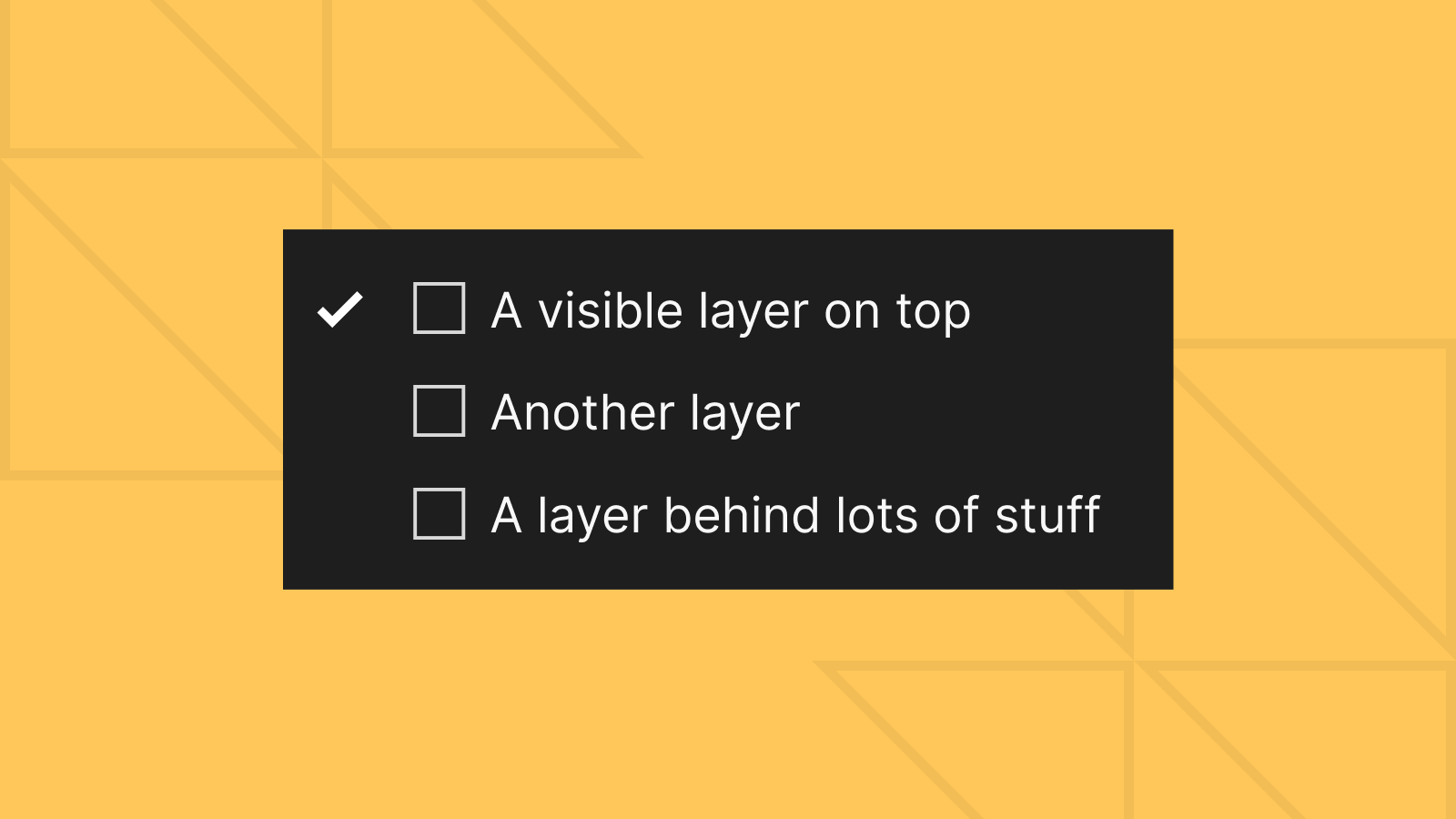
If multiple layers are stacked under your cursor, press ⌘ + right-click to reveal them. Click a layer in the list to select it.
This only works when multiple layers overlap. Alternatively, right-click and choose Select layer to get the same list. Especially useful on trackpads where right-clicking can be finicky.
(On Windows, use Ctrl + right-click.)
Outline mode

Press Shift + O (or ⌘ + Y) to enter outline mode. It’s like putting on X-ray glasses, where you’ll see what’s really going on beneath the surface.
Use it to inspect what’s hidden under top layers, what lies outside masks, the structure of boolean shapes, what’s stroke vs fill, and more.
Go to View → Outlines to toggle whether hidden layers are visible and whether object edges are shown.
Bonus: Layers with content are marked with an arrow
Hover over the left panel and notice that all layers containing other layers—groups, frames, sections, etc.—are marked with a subtle arrow on the left. Handy for quickly spotting which layers contain more than just themselves.
Thanks to Frode Bang and Jon Hofsli for some of the tips.