
Delete & Heal in Figma

If you’re a Figma enthusiast, you’ve probably noticed a ton of updates lately. So, right in the middle of all these new features, I’m going to do the exact opposite: brush the dust off something old.
Let’s take a look at Figma’s “Delete & Heal” feature from 2016, which lets you simplify vector shapes in a ridiculously simple way.
TLDR: delete vector points with Shift + Backspace (Delete), and Figma will automatically guess the path between the remaining points.
Here's the thing:
Vector shapes are often built with more points than necessary, sometimes to a point where they actually get in the way. By reducing the number of points, you make shapes easier to edit, files lighter (like SVGs), and paths visually smoother.
So let’s take a look at how one simple trick can make your vectors significantly smoother and easier to work with:
The problem

Here’s a sketch from a typical scenario: your Norwegian grandpa has launched an online shop. But the illustrated vest is made up of too many vector points, probably from some auto-trace action back in the days. Anyhow: it could definitely use a cleanup.
Select the points and press Shift + Backspace when deleting them, and Figma takes care of the rest. And if there’s one thing grandpa appreciates, it’s care and rest.
A closer look

This is how the vest is constructed. A generous number of points that could easily be reduced.
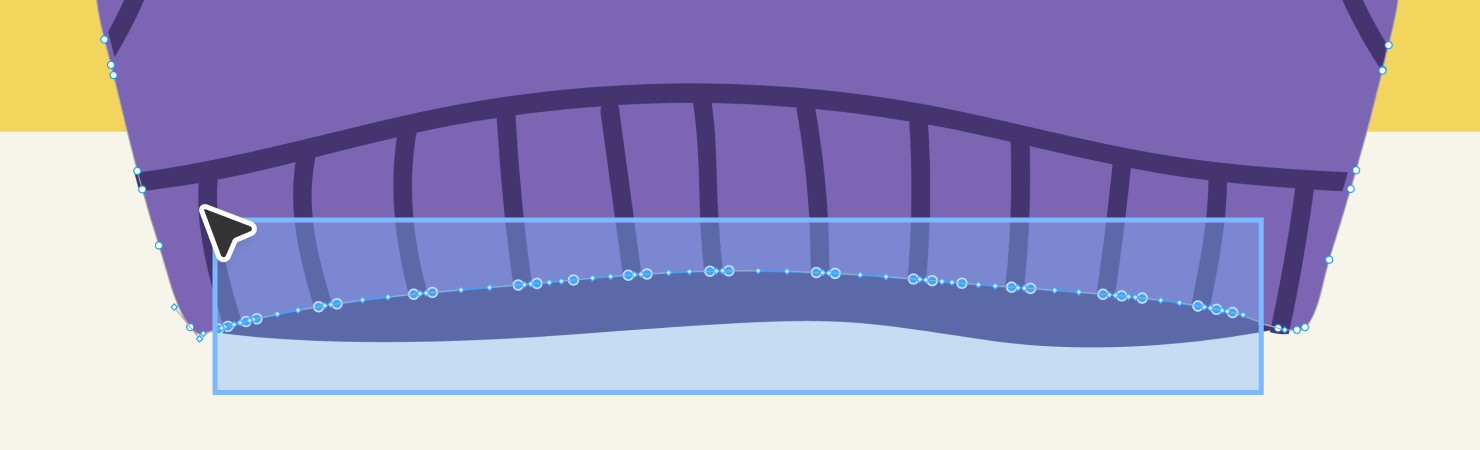
Double-click the object you want to simplify to go into edit mode (you may need to hold Command or Ctrl on Windows while double-clicking, if the shape is inside a group), and drag the points you think of removing.

Instead of deleting, use Shift + Backspace to delete while preserving the path.
Voila!
Just like that, a bunch of points are gone, and that’s really all there is to it. You can repeat this process in other areas until you’re left with a clean, refined shape with a minimal number of points.
This works best along curved paths, especially when you want to smooth them out. But be aware: it doesn’t always get it right. In those cases, you may need to add a few extra points to help Figma along, or tweak things manually until it looks good. Still, in 90% of cases, Delete & Heal is a lifesaver when dealing with unnecessary vector clutter.